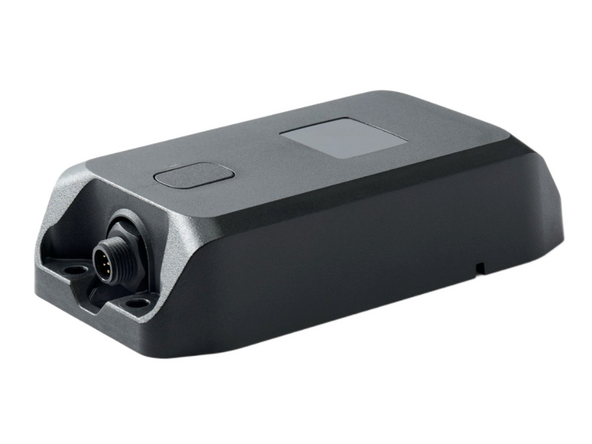
v1.3

Minor Versionm

by Alkesh Dhak

    • Do not attempt to install, reconfigure or remove any product from a vehicle while the vehicle is in motion or otherwise in operation. All installation, configuration or removal must be done only in stationary vehicles which are securely parked.

    • Attempting to service devices while the vehicle is in motion could result in malfunctions or accidents, leading to death or serious personal injury.

  1. Before installation, make note of the following:
    • Before installation, make note of the following:

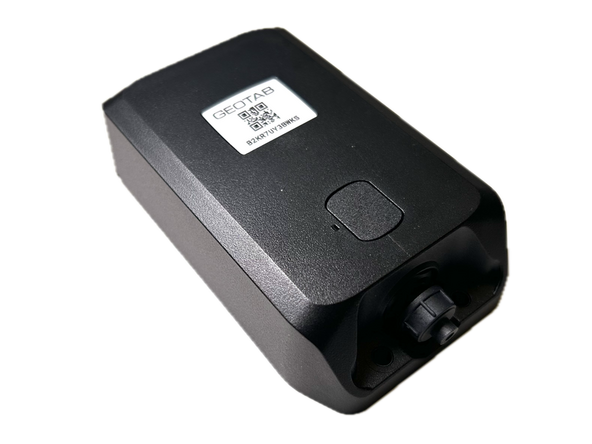
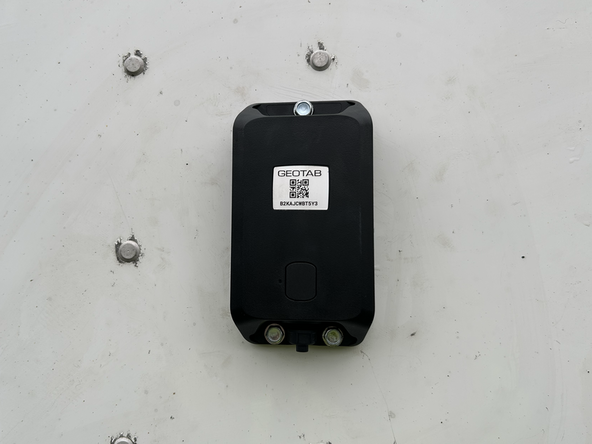
    • GO Anywhere 2 device serial number

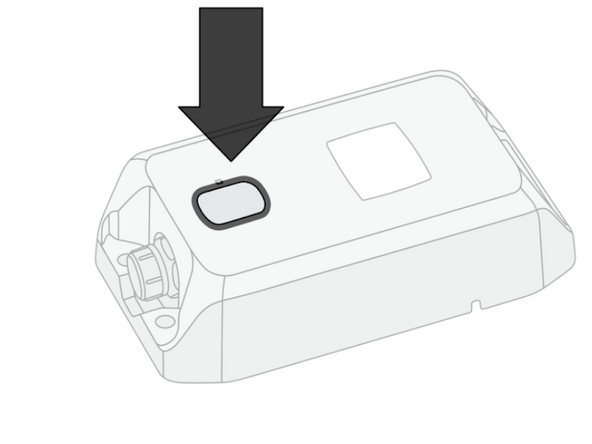
    • The serial number is printed below the barcode on the sticker on the top of the GO Anywhere 2 device.

    • Fleet alias/number/ID

    • License plate number

    • VIN

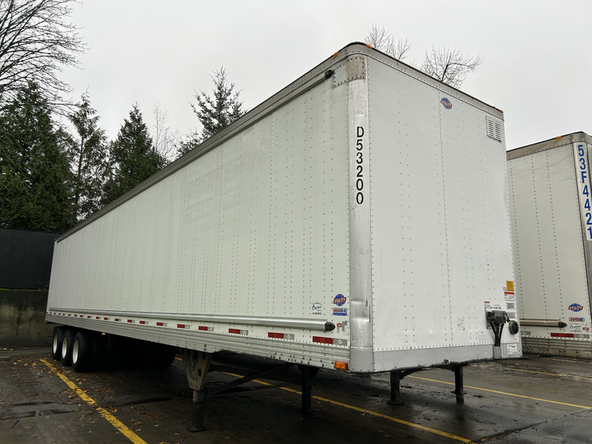
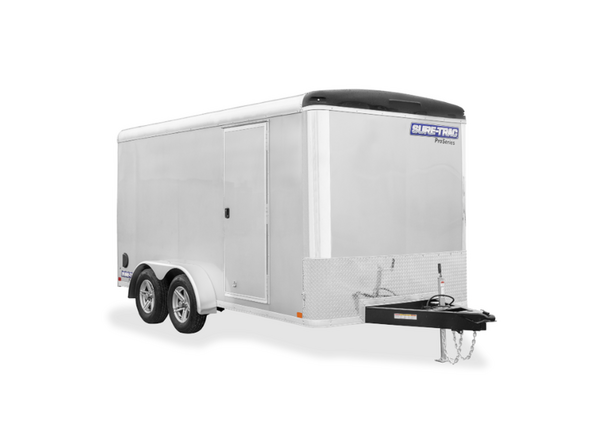
  2. The HRN-NATRL harness is designed to be installed into a variety of trailers. The HRN-NATRL harness is designed to be installed into a variety of trailers. The HRN-NATRL harness is designed to be installed into a variety of trailers.
    • The HRN-NATRL harness is designed to be installed into a variety of trailers.

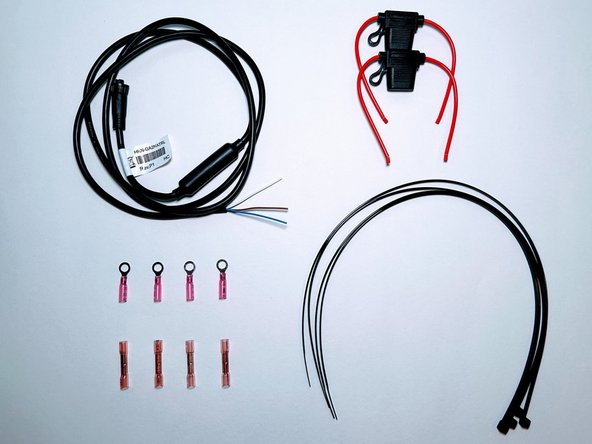
  3. The HRN-NATRL kit contains: HRN-NATRL Harness & HRN-2AFUSEKIT
    • The HRN-NATRL kit contains: HRN-NATRL Harness & HRN-2AFUSEKIT

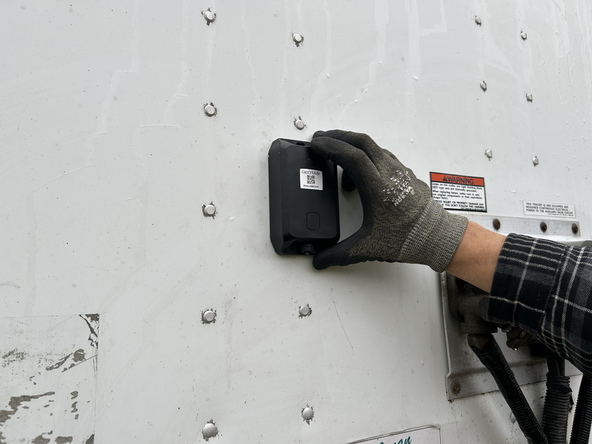
  4. Find a suitable location to install the device on your asset. The GO Anywhere 2 must have optimal line of sight to the sky with no metal obstructions that interfere with the signal.
    • Find a suitable location to install the device on your asset.

    • The GO Anywhere 2 must have optimal line of sight to the sky with no metal obstructions that interfere with the signal.

    • Ensure the surface that you are mounting to has a solid backing where the screws will hold the device securely.

    • Mounting to thin surfaces may lead to the screws backing out due to road vibration.

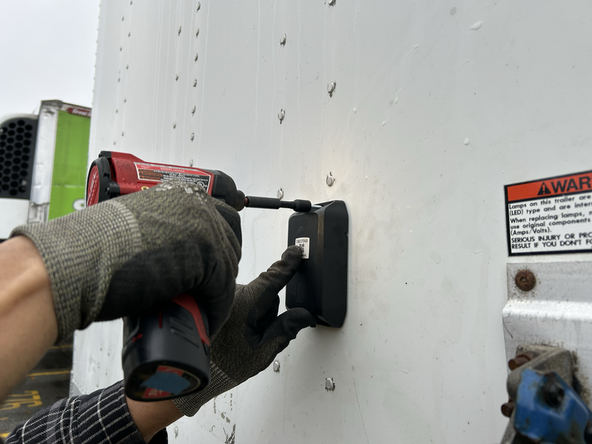
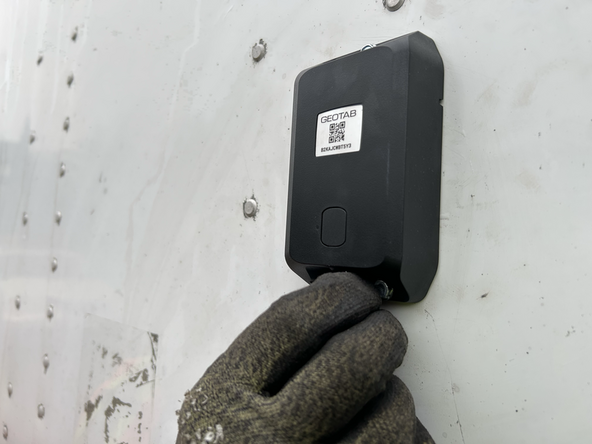
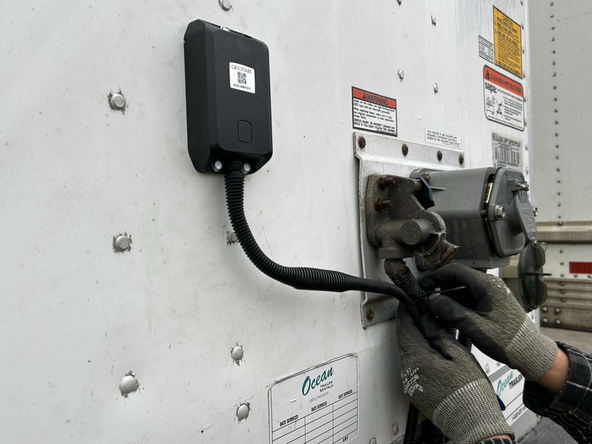
  5. The GO Anywhere 2 device should be mounted with the connector facing downwards to prevent water intrusion. Using the supplied 3 x self drilling screws mount the GO Anywhere 2 device.
    • The GO Anywhere 2 device should be mounted with the connector facing downwards to prevent water intrusion.

    • Using the supplied 3 x self drilling screws mount the GO Anywhere 2 device.

    • Before drilling, check behind the mounting location to ensure the area is clear of any obstructions or electrical wires/components.

  6. Remove the protective cap on the bottom of the GO Anywhere 2 device. Use dielectric grease whenever connections may be exposed to moisture. Use dielectric grease whenever connections may be exposed to moisture.
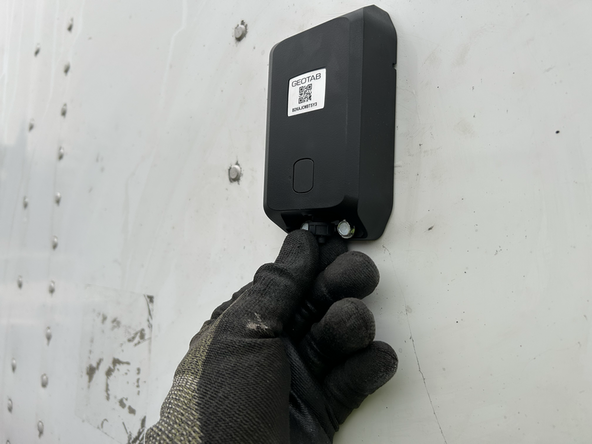
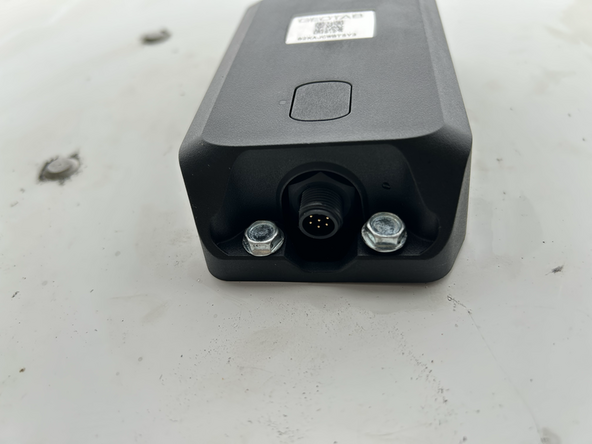
    • Remove the protective cap on the bottom of the GO Anywhere 2 device.

    • Use dielectric grease whenever connections may be exposed to moisture.

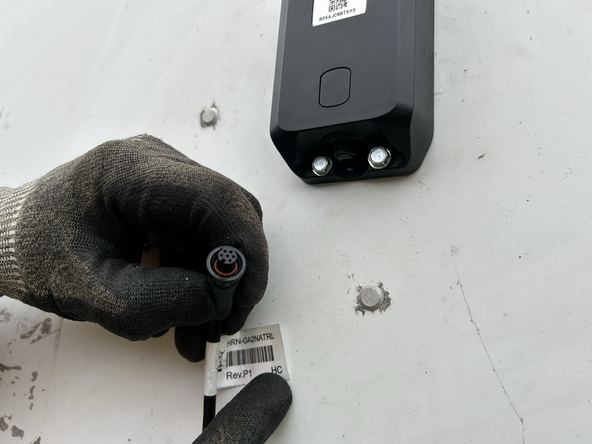
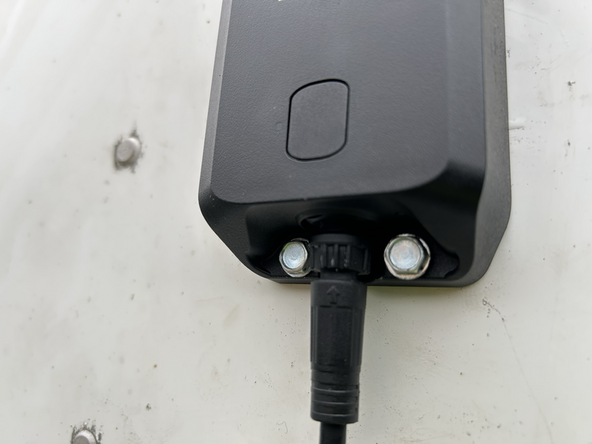
  7. Connect the female connector on the HRN-NATRL harness to the GO Anywhere 2 device. Ensure the connection is secure and locked into place. Secure the connector until it is snug and then further tighten a 1/4 turn.
    • Connect the female connector on the HRN-NATRL harness to the GO Anywhere 2 device.

    • Ensure the connection is secure and locked into place.

    • Secure the connector until it is snug and then further tighten a 1/4 turn.

    • Note that the connector is keyed to ensure correct orientation.

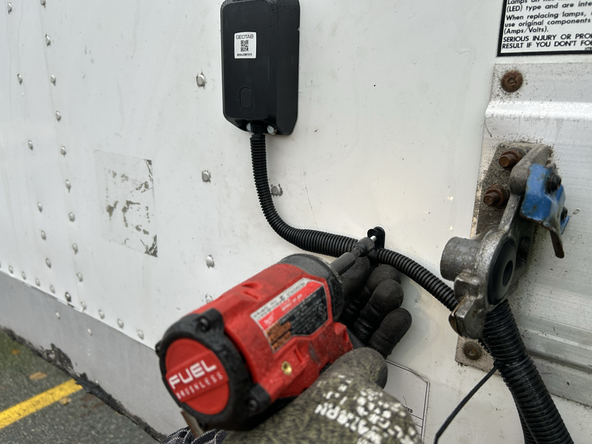
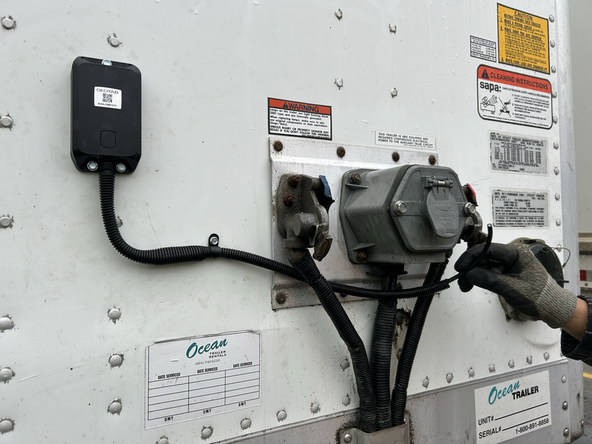
  8. Ensure you use wire loom to protect the wires. Secure excess wiring with cable ties and clamps as needed. The HRN-NATRL harness can be cut to length if necessary.
    • Ensure you use wire loom to protect the wires.

    • Secure excess wiring with cable ties and clamps as needed.

    • The HRN-NATRL harness can be cut to length if necessary.

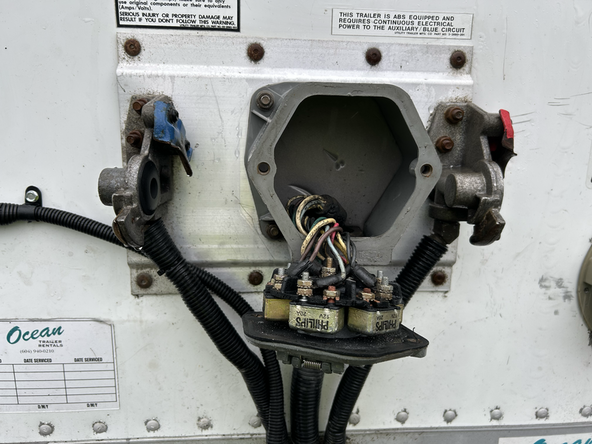
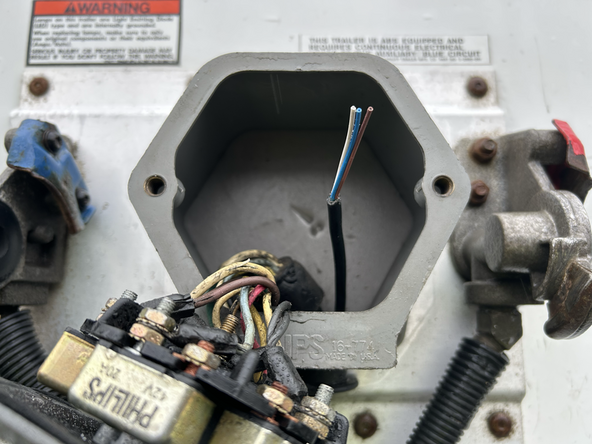
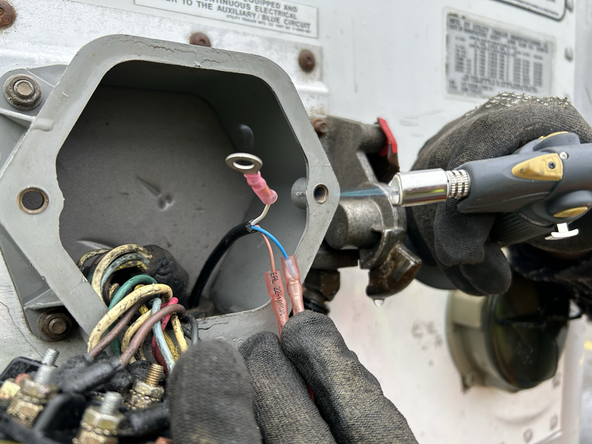
  9. Access the trailers connection point.
    • Access the trailers connection point.

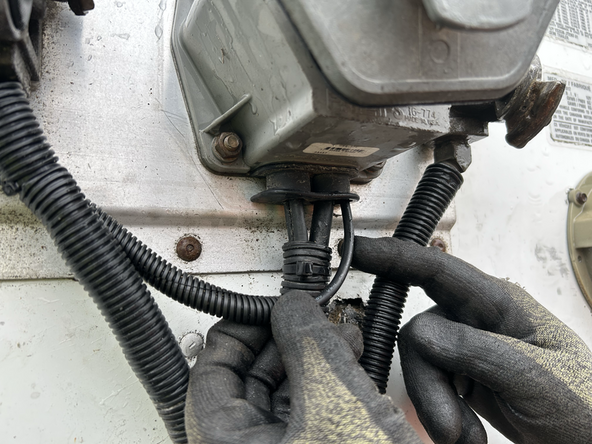
  10. Route the wire through existing grommets if available. In some cases you may need to drill a hole to access the trailers connection point. Before drilling, check behind the location to ensure the area is clear of any obstructions or electrical wires/components.
    • Route the wire through existing grommets if available.

    • In some cases you may need to drill a hole to access the trailers connection point.

    • Before drilling, check behind the location to ensure the area is clear of any obstructions or electrical wires/components.

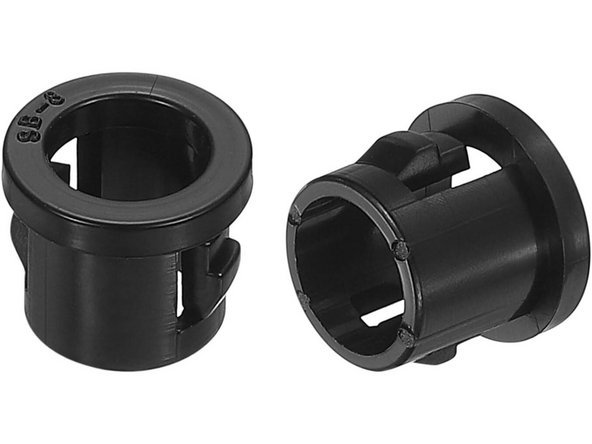
    • Use the appropriate grommet to prevent wire chafing.

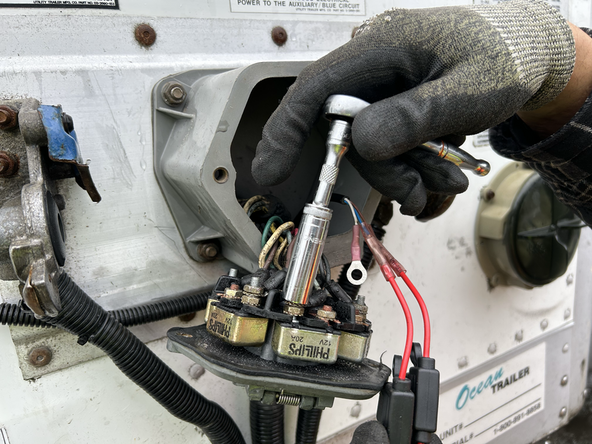
  11. Prepare the HRN-NATRL harness by using the fuse holders, butt connectors, and ring terminals in the HRN-2AFUSEKIT. The 2 x fuse holders will be used on the Brown and Blue wires. Use a heat gun or butane torch to seal the heat shrink crimp connectors.
    • Prepare the HRN-NATRL harness by using the fuse holders, butt connectors, and ring terminals in the HRN-2AFUSEKIT.

    • The 2 x fuse holders will be used on the Brown and Blue wires.

    • Use a heat gun or butane torch to seal the heat shrink crimp connectors.

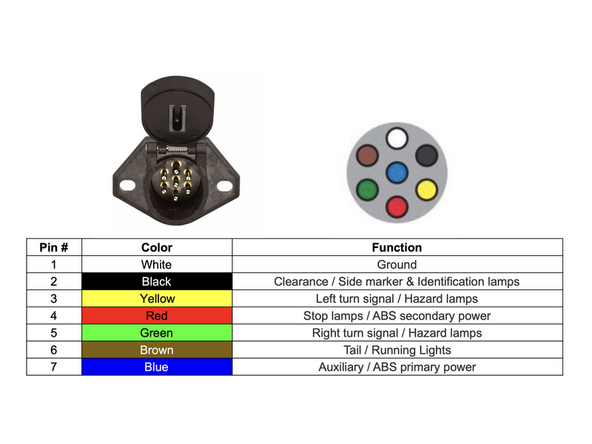
  12. WHITE (HRN-NATRL) - Ground (Pin 1)
    • WHITE (HRN-NATRL) - Ground (Pin 1)

    • BROWN (HRN-NATRL) - Tail / Running Lights (Pin 6)

    • BLUE (HRN-NATRL) - Auxiliary / ABS primary power (Pin 7)

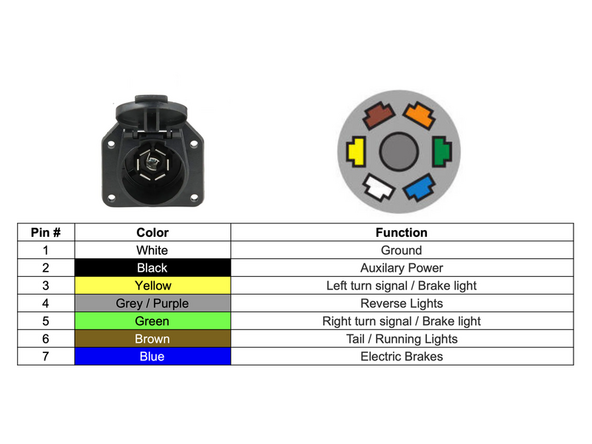
  13. WHITE (HRN-NATRL) - Ground (Pin 1)
    • WHITE (HRN-NATRL) - Ground (Pin 1)

    • BROWN (HRN-NATRL) - Tail / Running Lights (Pin 6)

    • BLUE (HRN-NATRL) - Auxiliary power (Pin 2)

    • NOTE: Pin 2 (Black Wire) may be constant power or ignition power. You must verify this. If Constant power, to avoid vehicle battery drain, be sure to disconnect the trailer connector from the vehicle when not in use.

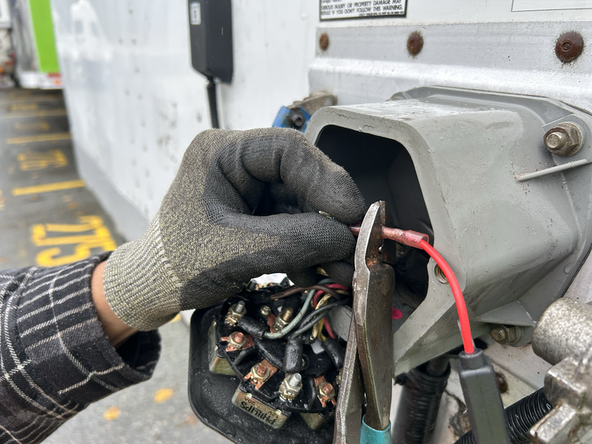
  14. Connect the wires from the HRN-NATRL harness to the trailers connection points based on the wiring diagram applicable to your application. Ensure all connections are secure. Secure excess wiring with cable ties as needed.
    • Connect the wires from the HRN-NATRL harness to the trailers connection points based on the wiring diagram applicable to your application.

    • Ensure all connections are secure.

    • Secure excess wiring with cable ties as needed.

    • Trim any excess cable tie.

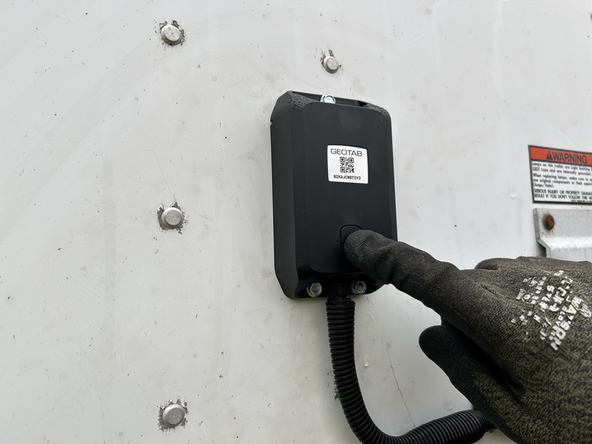
  15. Begin activation by pressing the button on the device. For optimal performance, activate the device in an area with good cellular coverage and a clear view of the sky for GNSS/GPS - outdoors are best.  The activation process may take up to five minutes. LED state - WHITE - Slow Flash
    • Begin activation by pressing the button on the device.

    • For optimal performance, activate the device in an area with good cellular coverage and a clear view of the sky for GNSS/GPS - outdoors are best. The activation process may take up to five minutes.

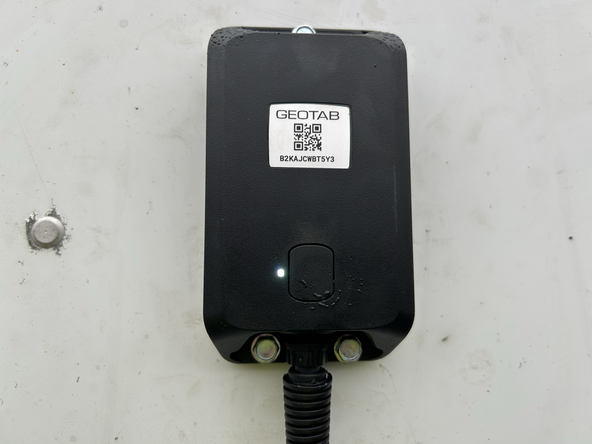
    • LED state - WHITE - Slow Flash

    • Status - Activation in progress.

    • Action - Do not unplug or touch the device.

    • LED state - GREEN - Fast flash for 15 seconds

    • Status - Device is battery-only, or wired and ignition is not detected.

    • Action - No action required.

    • LED state - GREEN - Solid for 15 seconds

    • Status - Device is wired, ignition is detected

    • Action - No action required.

    • LED state - ORANGE - Flash every 15 seconds

    • Status - No GPS signal.

    • Action - Move device to be in sky view. Press button to re-attempt activation.

    • LED state - ORANGE - 2 x Flash every 15 seconds

    • Status - No (or weak) cell service.

    • Action - Move asset to an area with cellular coverage. Press button to re-attempt activation.

    • If activation is unsuccessful, the device will automatically retry. You can manually force a retry by pressing the device's button.

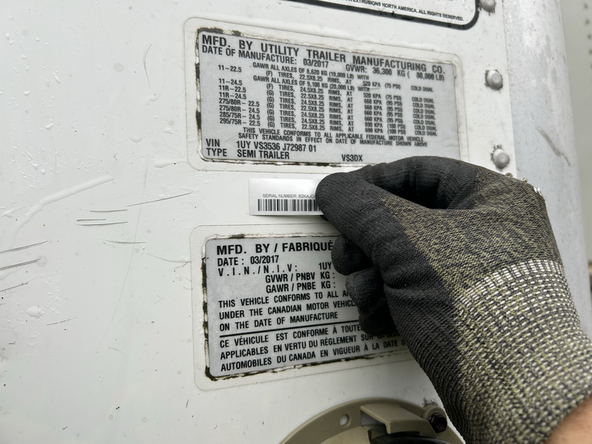
  16. Place the serial number sticker in a suitable location for future reference.
    • Place the serial number sticker in a suitable location for future reference.

Finish Line

Alkesh Dhak

Member since: 4/7/22

118 Guides authored

Team