Introduction
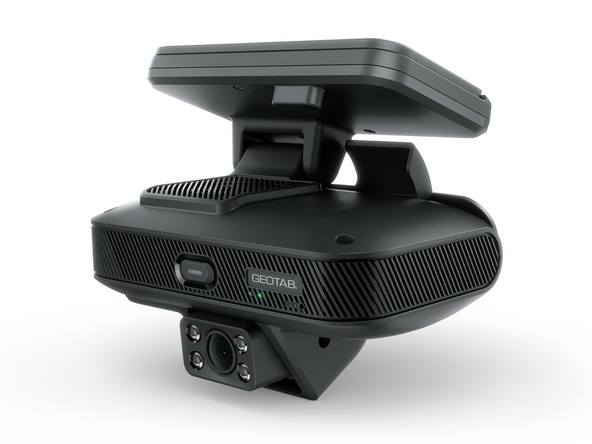
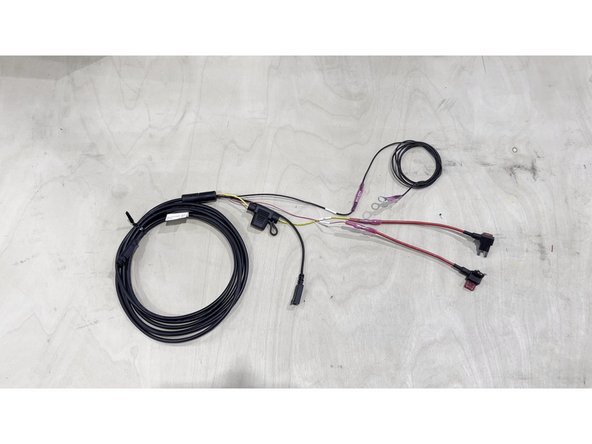
The GO Focus Pro is a dual-lens dashcam designed for fleets requiring advanced safety video telematics. It features road-facing and cabin-facing cameras with continuous AI inference for pre-collision warnings, red light detection, and pedestrian detection. The GO Focus Pro mounts to the windshield and connects to the vehicle via the HRN-IOXGFPRO-3W 3-wire harness, drawing ignition and constant power from the fuse panel.
When equipped with TVI auxiliary cameras, the GO Focus Pro provides full 360-degree video coverage around the vehicle, reducing blind spot incidents and enhancing driver awareness. All camera feeds are managed through the Geotab Video app and the Geotab fleet management platform.
Recommended Tools & Consumables
Hardware & Accessories
No Hardware & Accessories specified.
Video Overview
-
-
WARNING! Only use Geotab telematics devices with Geotab-approved harnesses acquired from Geotab-authorized channels. Use of non-Geotab harnesses from unauthorized channels can cause serious safety risks, including fire, and can lead to serious personal injury and/or damage to the vehicle.
-
IMPORTANT: Always use a vehicle-specific harness when offered by Geotab or the vehicle manufacturer to avoid possible damage to the GO device. Some vehicles have multiple diagnostic connectors to choose from when installing a GO device.
-
For more information on Geotab harnesses and adapters, refer to the Harness Identification and Application & Harness Assessment Cheat Sheet & Geotab Truck Solution - Harness Identification and Application
-
If a longer length is required to facilitate installation, connect a straight harness to a T-harness. Ensure that the total harness length does not exceed 2 meters (6.5 feet), because this can compromise the integrity of the data and cause issues with the vehicle’s Engine Control Unit (ECU).
-
For more details on compliance information and applicable products, contact your Authorized Reseller.
-
-
-
WARNING! Some installations are not straightforward and must be completed by an Authorized Installer to ensure a secure installation.
-
An unsecure device can result in poor electric and/or data connections, which can lead to short circuits and fires or cause malfunctions of vehicle controls that can result in serious personal injury or significant damage to the vehicle. Some examples requiring professional installation from an Authorized Installer are:
-
The OBD port location is such that the device protrudes and interferes with entering or exiting the vehicle, or located where it could be inadvertently kicked or bumped during vehicle operation.
-
The device isn't fully secured and so may come loose with vibrations or accidental contact.
-
An electrical harness or additional wiring is required.
-
Vehicle mounting modifications are required to secure the device, i.e. removing of panels; deformed/damaged OBD connector; or physical damage to the electrical wiring.
-
The device does not power on and beep six times when first installed.
-
The installer questions their ability to complete a secure installation according to these instructions.
-
-
-
WARNING! Do not attempt to install, reconfigure, or remove any product from a vehicle while the vehicle is in motion or otherwise in operation. All installation, configuration, or removal must be done only in stationary vehicles which are securely parked.
-
Attempting to service devices while the vehicle is in motion could result in malfunctions or collisions, leading to death or serious personal injury.
-
-
-
Overview:
-
The guidance below describes the recommended placement for optimal camera performance. It is general information to help you install the camera effectively. It is not legal advice, and it does not determine what is lawful in your location.
-
The vehicle owner and the installer are responsible for selecting a final mounting position that complies with all applicable windshield-obstruction and device-placement laws for the vehicle’s class and operating region(s). Where the best-performing position is not permitted by local law, local law governs.
-
-
-
Mount the camera as high and as close to the vertical center of the windshield as practical (typically directly behind or beside the rear-view mirror) so the road-facing lens has a clear, centered view of the road ahead and the driver-facing lens (if equipped) has a clear view of the cab.
-
Keep the road-facing lens within the area swept by the windshield wipers so that rain, snow, and debris are cleared from the camera’s view.
-
Keep both lenses clear of obstructions such as stickers, heavy tint bands, VIN plates, toll transponders, and factory-installed sensor or camera housings (for example, ADAS or rain-sensor modules) behind the mirror.
-
Position the camera so it does not block the driver’s view of the road, signs, or signals, and mount it outside the driver’s primary line of sight.
-
Keep the camera body and cabling clear of airbag deployment paths, including roof-rail and curtain airbags routed through the A-pillars and headliner.
-
Before removing the adhesive backing, use the Geotab Video app live preview to confirm framing (driver’s head centered in the on-screen guide; horizon aligned in the road view), then verify the final position.
-
-
-
Most jurisdictions restrict what may be mounted on a windshield. A near-universal requirement is that nothing may materially obstruct the driver’s field of vision.
-
Many jurisdictions also regulate the specific area of the windshield where a device may be placed and/or the maximum size of the device, and some rules differ by vehicle class (for example, light-duty vehicles versus heavy commercial vehicles).
-
Because these requirements vary and change over time, confirm the current rules that apply to your vehicles and operating region(s) before installing, and select a compliant mounting position. Consult your own advisors where needed.
-
-
-
Some jurisdictions have more specific or more stringent placement requirements than others. The official sources below are provided for convenience and as a starting point only. They are not exhaustive, do not describe every applicable requirement, and are not a substitute for confirming the current law that applies to you:
-
United States (commercial motor vehicles): 49 CFR § 393.60 (FMCSA)
-
California: California Vehicle Code § 26708
-
Canada (set provincially; rules vary by province): Ontario Highway Traffic Act
-
United Kingdom and Europe (rules vary; often based on a general driver’s field-of-vision standard): UK Department for Transport guidance
-
If the recommended position is not permitted where you operate, prioritize compliance. Choose the position within the legally permitted area that provides the clearest usable view for both lenses.
-
Note: This placement guidance is general best-practice information, is current as of 07/21/2026, and is not legal advice. Windshield-obstruction and device-placement laws vary by jurisdiction and vehicle class and change over time. The vehicle owner and installer are responsible for compliance.
-
-
-
Before installing the GO Focus Pro, download the Geotab Video app. Available on Apple App Store and Google Play Store.
-
Apple Geotab Video
-
Android Geotab Video
-
-
-
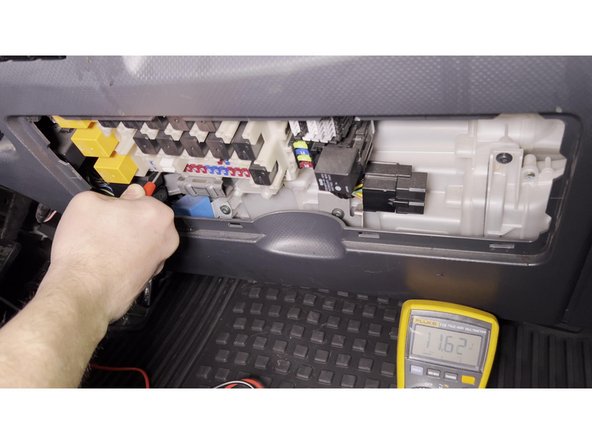
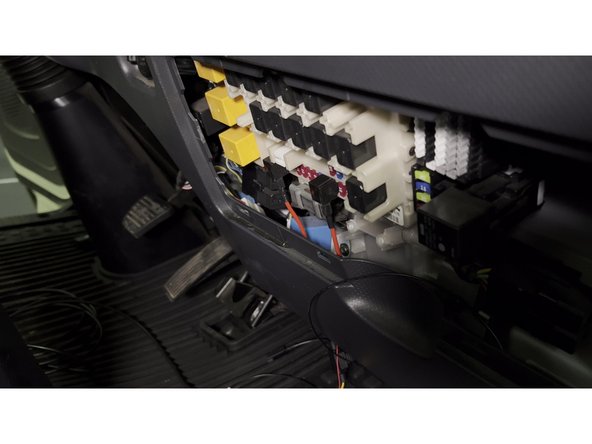
Using a multimeter, identify the constant battery power (B+) fuse slot and the ignition (ACC) fuse slot.
-
Temporarily connect the HRN-IOXGFPRO-3W 3-wire harness to the fusebox using fuse taps:
-
Red wire — ACC (ignition signal)
-
Yellow wire — Constant B+ (battery power)
-
Black wire — Ground (GND)
-
This temporary connection powers the camera for adjustment. The harness will be routed and secured permanently in a later step.
-
-
-
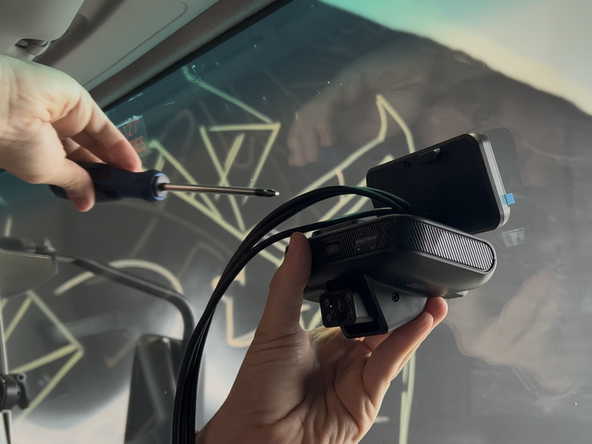
Pre-loosen the screws on the camera using the provided Allen key so you can adjust the camera angle.
-
Install the mounting bracket to the back of the device.
-
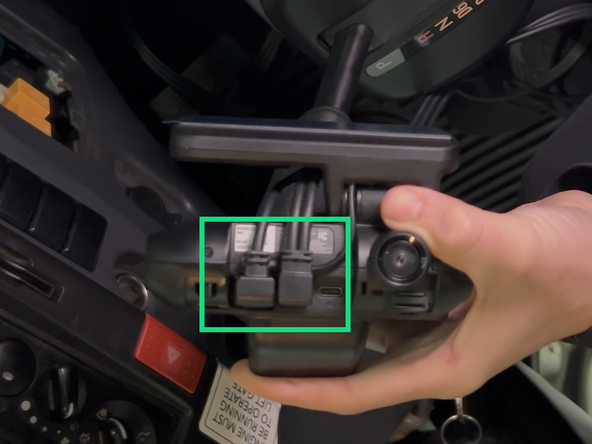
Connect the 3-wire harness cable to the GO Focus Pro.
-
-
-
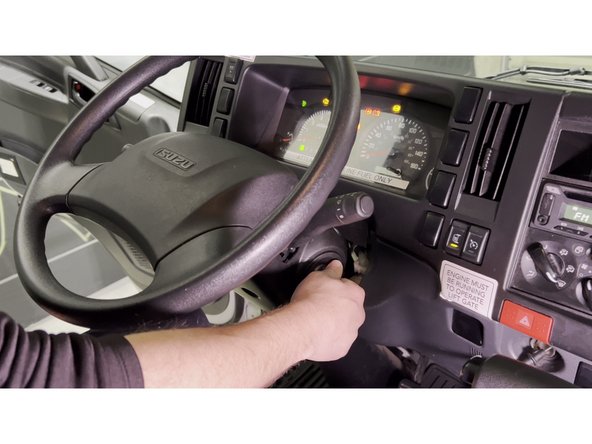
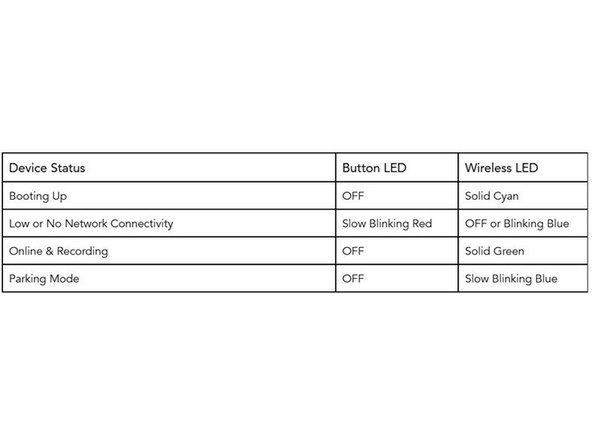
Turn on the vehicle and wait for the LED on the GO Focus Pro to go solid green.
-
-
-
Launch the Geotab Video app.
-
Select "Activate dashcam" and follow the prompts on screen.
-
The app will ask you to scan the serial number located on the GO Focus Pro box.
-
-
-
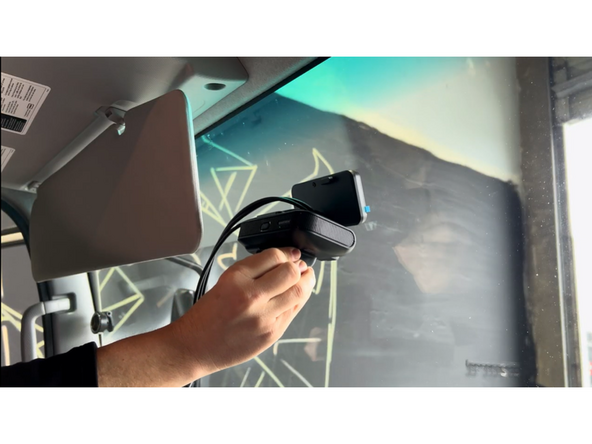
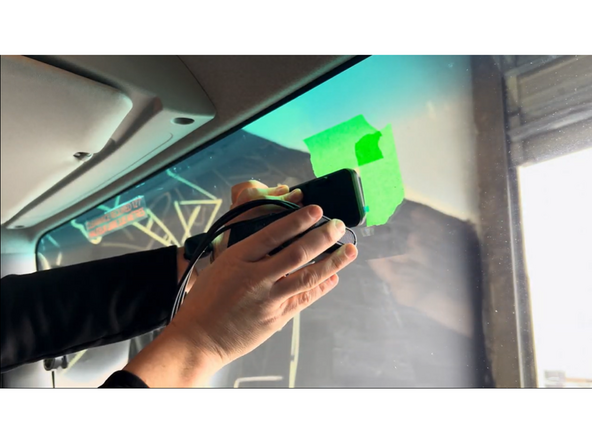
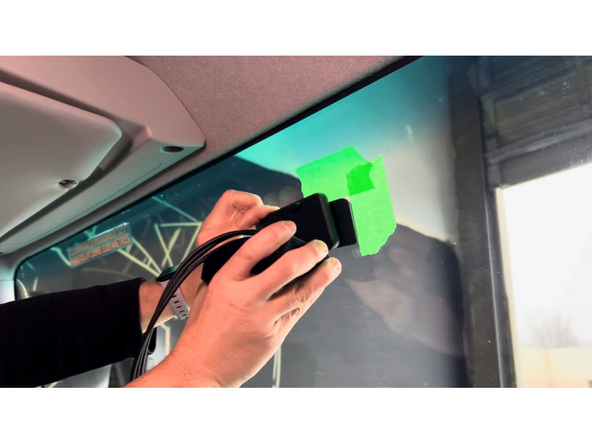
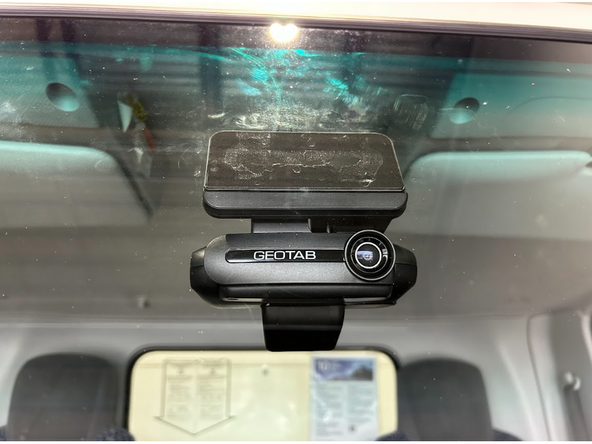
With the GO Focus Pro powered on and connected to the Geotab Video app, hold the camera in the desired mounting position on the windshield — within the wiper sweep area.
-
Use the app's live camera view to confirm the cabin and road camera angles look correct from this position.
-
Once satisfied with the position, use masking tape to mark the perimeter of the mounting bracket on the windshield.
-
Before mounting, confirm your position follows the Windshield Placement section, both for camera performance and for the placement laws that apply where the vehicle operates.
-
Verify sun visor does not block cabin facing camera when in the down positon.
-
-
-
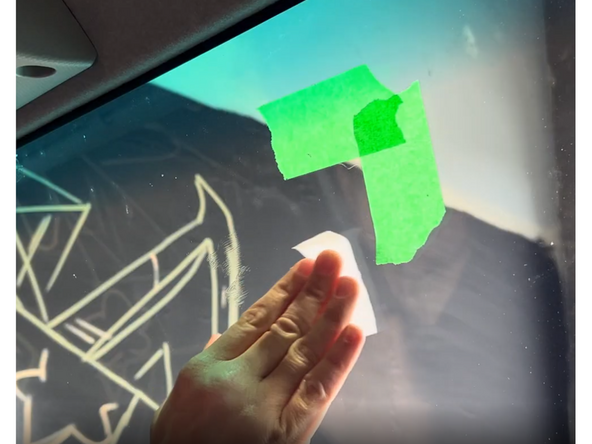
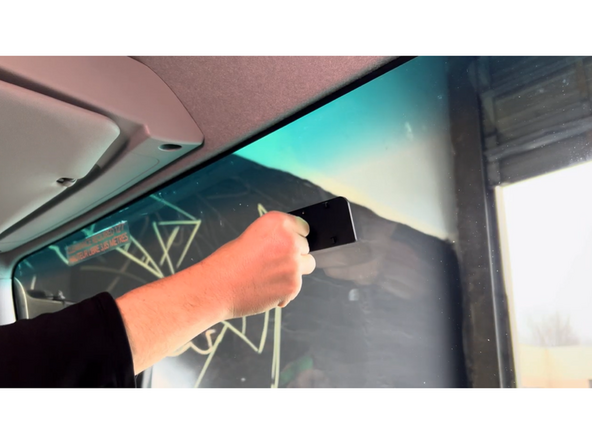
Use the provided alcohol wipe to thoroughly clean the mounting area on the windshield.
-
Let the alcohol evaporate for 60 seconds or clean with a lint-free rag.
-
Do not touch the cleaned area with bare hands — skin oils will reduce adhesion.
-
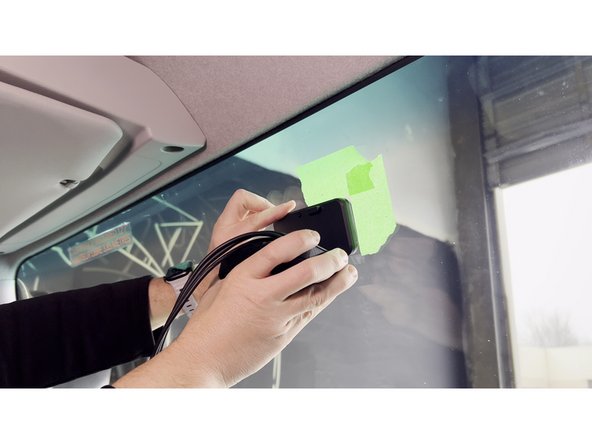
Remove the adhesive backing from the mounting bracket on the back of the camera.
-
Apply pressure for 30 seconds.
-
Do not mount the GO Focus Pro if the windshield is below 70°F / 21°C or above 100°F / 38°C. Use the windshield defrost to warm or cool the windshield if necessary. Excessive hot or cold glass significantly reduces adhesive bond strength.
-
-
-
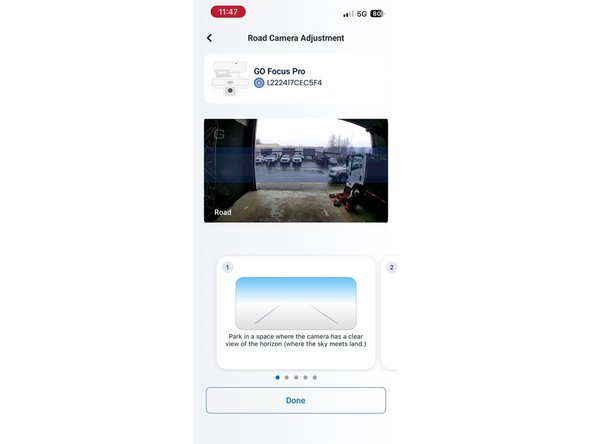
Select "Adjust" for the road-facing camera.
-
Adjust the camera so that the horizon is in the blue box.
-
-
-
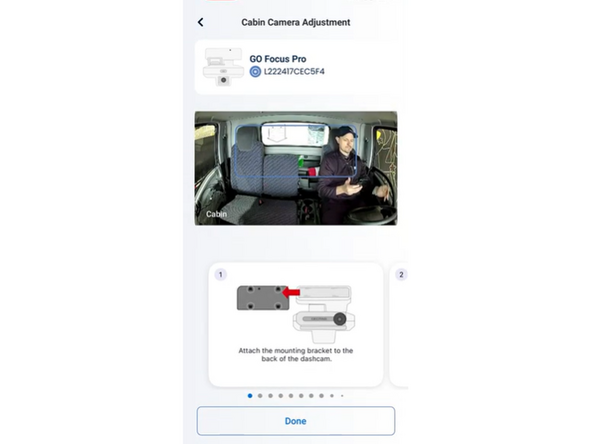
In the app, select "Adjust" in the cabin section.
-
Adjust the physical camera so that the driver's head is sitting in the blue box.
-
Sit in a normal driving position when adjusting the cabin camera to ensure proper alignment.
-
-
-
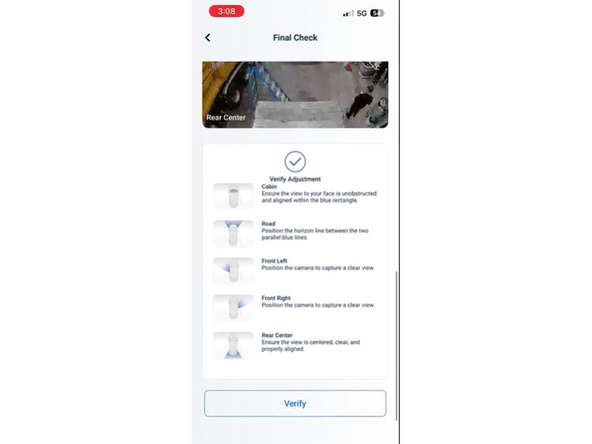
Once both camera angles are set, the app will ask you to verify and do a final check.
-
Select "Verify" and the verification is complete.
-
-
-
Dismount the camera from the mounting bracket.
-
Press the mounting bracket for an additional 30 seconds to ensure it is firmly in place.
-
Place the camera back on the mounting bracket.
-
-
-
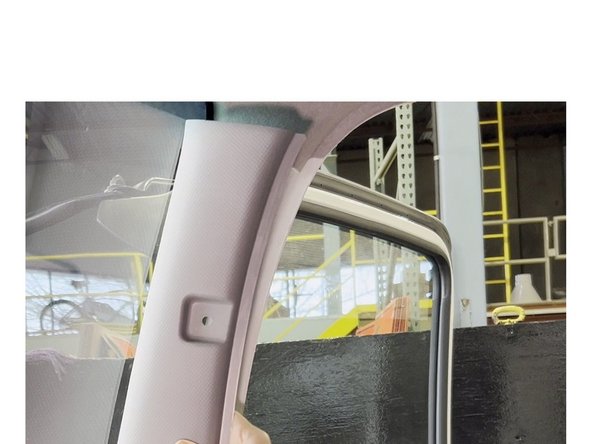
Carefully remove the cover for the driver's side A-pillar and any additional paneling required to route the harness.
-
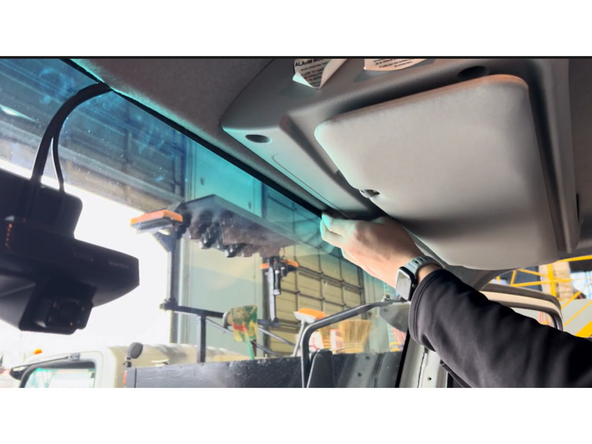
Tuck the harness cable behind the headliner toward the A-pillar, ensuring it is not obstructing the driver's view.
-
Secure the cable along the A-pillar in a way that it does not obstruct the airbag functionality.
-
Use cable ties as required. Trim any excess tie.
-
-
-
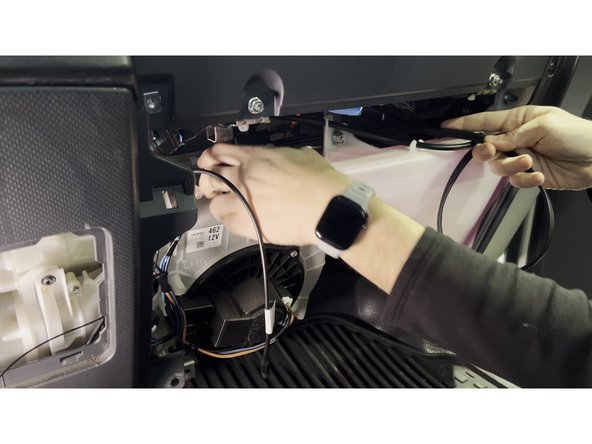
Route the harness cable from behind the headliner down to the fusebox.
-
Make the permanent fuse tap connections — Red (ACC), Yellow (B+), Black (GND).
-
Secure all wiring neatly behind the fusebox panel using cable ties. Trim any excess tie.
-
-
-
All in-vehicle devices and related cabling must be securely fastened and kept clear of all vehicle controls, airbags, and gas, brake and clutch pedals.
-
This requires the use of a cable tie when securing the device or any extension harness to the OBD connector, securing both sides of the harness. If you do not use a cable tie, vibration in the vehicle can lead to a loose connection which could cause the vehicle’s engine computer to fail, causing potential loss of vehicle control and serious injury.
-
Inspect devices and cabling regularly to ensure all devices and cabling continue to be securely attached.
-
If at any point after an in-vehicle device is installed a warning light illuminates on the vehicle dash or the vehicle stalls or has a marked drop in performance, shut off the engine, remove the device, and contact your reseller. Continuing to operate a vehicle with these symptoms can cause loss of vehicle control, and serious injury.
-
-
-
Navigate to one of the following:
-
-
-
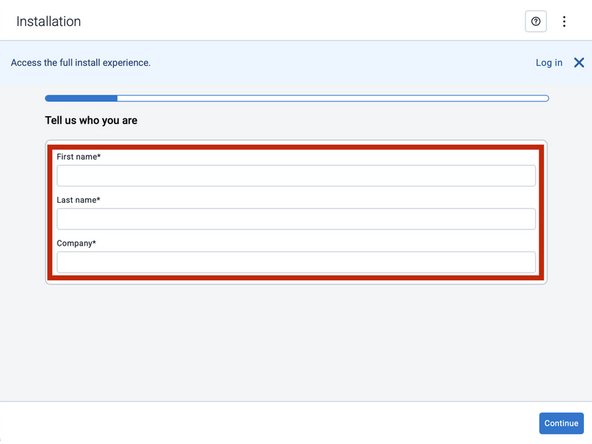
Note that the following steps are for the public version of MyInstall.
-
If you have an installer MyAdmin account, use this link
-
This link is also accessible via the MyInstall Public page.
-
-
-
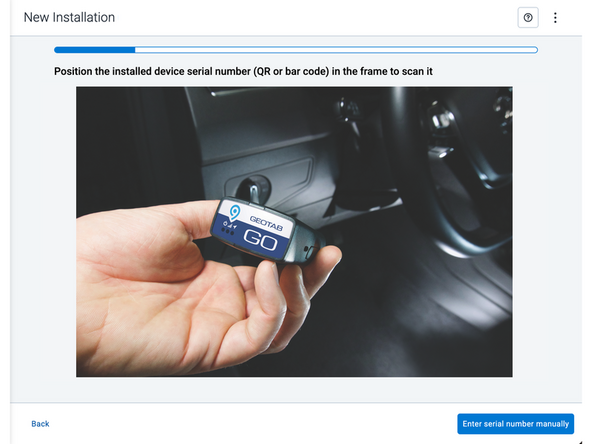
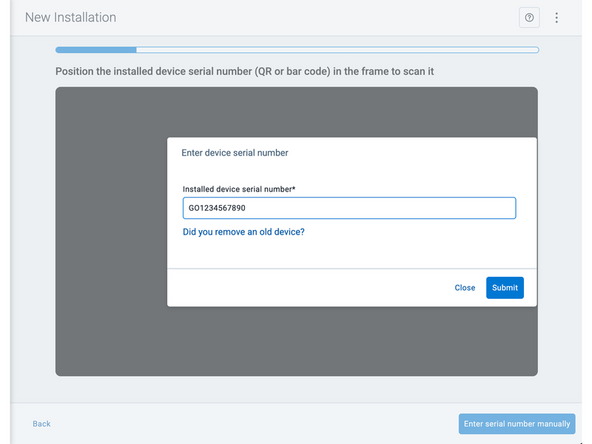
Two options are available to enter the device serial number:
-
Scan the device serial number (QR or barcode) using your mobile device.
-
Press Enter serial number manually, enter the serial number, and then press Submit.
-
If you are also removing an old device, press Did you remove an old device? and then enter the removed device serial number.
-
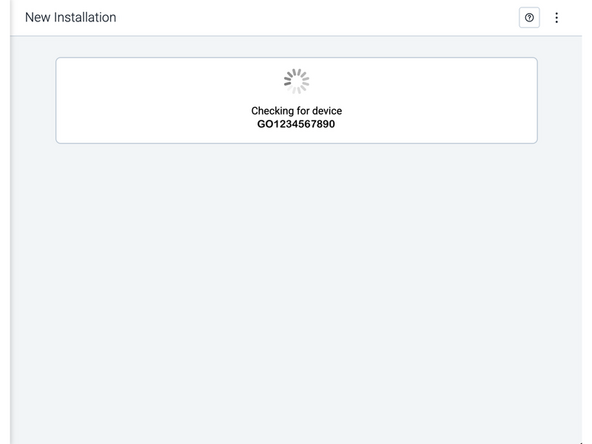
MyInstall takes a moment to check the device status.
-
-
-
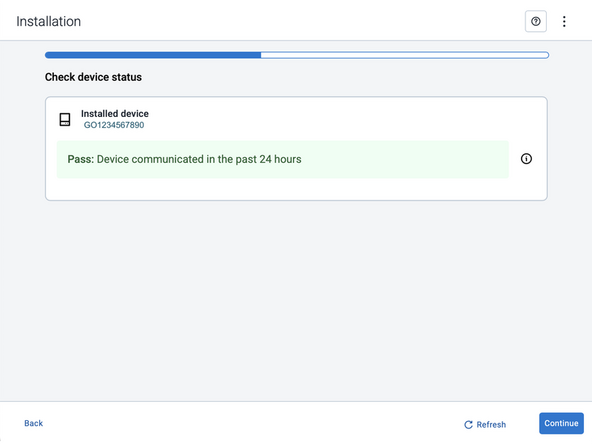
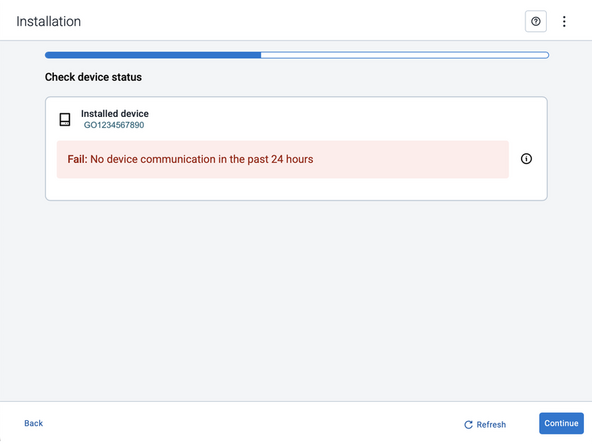
Installed device
-
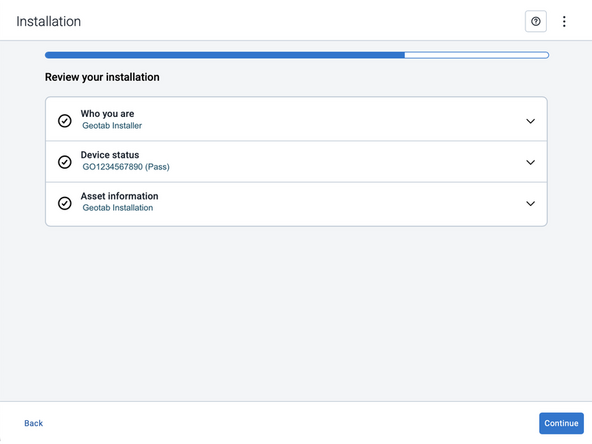
Pass – The device has successfully communicated with the network in the last 24 hours.
-
Fail – The device has not communicated with the network in the last 24 hours.
-
If the device status shows as FAILED, verify the LED status and turn the ignition / engine off and on again.
-
Press Refresh to check the status again.
-
Refer to the MyInstall User Guide for detailed instructions.
-
-
-
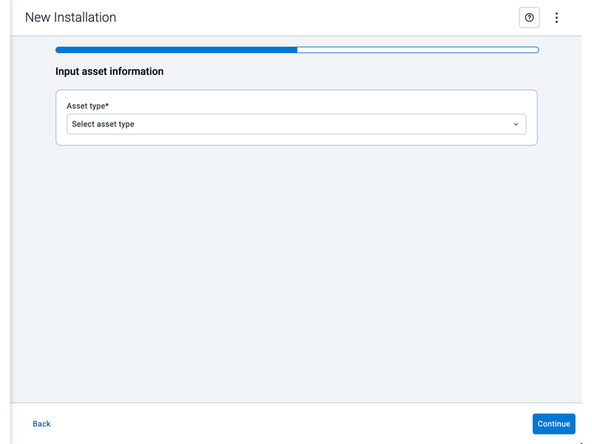
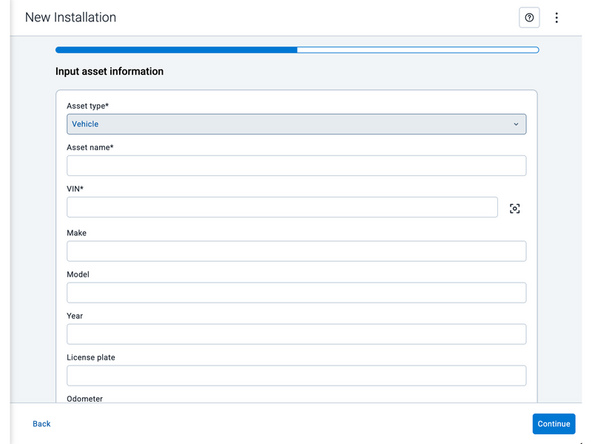
Asset name — Enter the vehicle or asset name. This field is mandatory.
-
VIN — Scan or enter the vehicle identification number (VIN). For scanning, select the scan icon [O] beside the field. This field is mandatory.
-
Make, Model, and Year — This information will be auto populated when you scan or enter a valid VIN. If it is not autopopulated, enter the information manually. NOTE: For some vehicle makes and models, the autopopulate option might not be possible.
-
License plate — Enter the vehicle license plate.
-
Odometer — Enter the vehicle odometer, and select the measurement unit (km or miles).
-
Engine hours — Enter the vehicle engine hours.
-
Camera ID (GO device only) — Scan or enter the installed camera identification (ID) number. NOTE: Depending on the camera type, the camera ID number can also be the camera’s International Mobile Equipment Identity (IMEI), or serial number. Select the information icon ⓘ to learn more about your camera’s ID number.
-
Work order reference — If applicable, enter a work reference number that is associated with the installation.
-
-
-
For the latest version of the Limitations of Use
-
Your in-vehicle devices must be kept clear of debris, water and other environmental contaminants. Failure to do so may result in units malfunctioning or short-circuiting, which can lead to a fire hazard and cause loss or serious injury.
-
This product does not contain any user-serviceable parts. Configuration, servicing, and repairs must only be made by an authorized reseller or installer. Unauthorized servicing of these products will void your product warranty.
-
The simplified EU declaration of conformity referred to in Article 10(9) shall be provided as follows:
-
Hereby, Geotab (Address: 2440 Winston Park Drive, Oakville, Ontario L6H 7V2, Canada, Phone number: 1 (877) 436-8221) declares that the radio equipment type ‘telematics device’ is in compliance with Directive 2014/53/EU. The full text of the EU declaration of conformity is available here.
-
WARNING: Cancer and Reproductive Harm
-


Team
